Q40. As pan of the initial development of a robotic project, you are using targeted step creation lo interrogate a text input control. The system invokes the automation from a separate automation, and the value of the text input uses a value that is passed into the recorded automation.
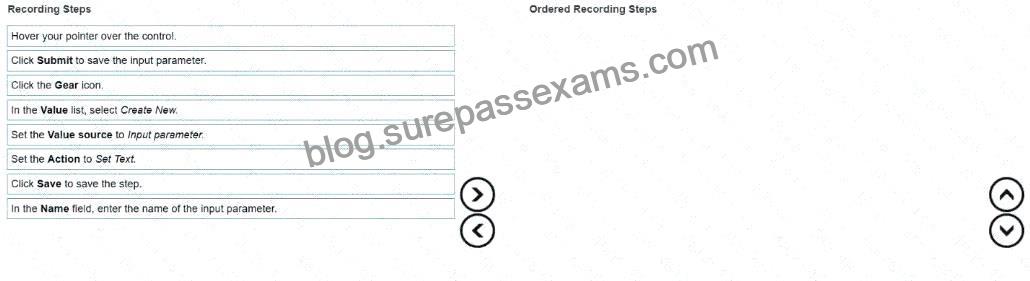
In the Recording Steps list, move all of the options to the Ordered Recording Steps column and place them in the correct order.
Explanation:
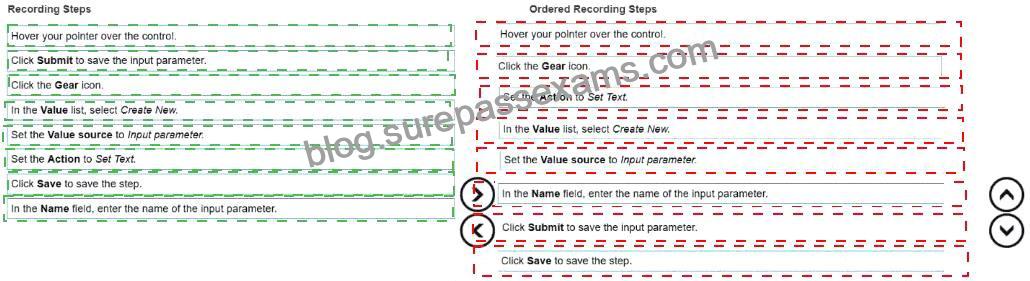
(Correct Order):
* Hover your pointer over the control.
* Click the Gear icon.
* Set the Action to Set Text.
* In the Value list, select Create New.
* Set the Value source to Input parameter.
* In the Name field, enter the name of the input parameter.
* Click Submit to save the input parameter.
* Click Save to save the step.
Targeted Step Creation is a Pega Robot Studio feature used to record automation steps directly by interacting with an interrogated control (for example, typing into a textbox). When the automation being recorded needs to receive data from another automation, an input parameter is configured as the value source for the recorded step.
According to the Pega Robotics System Design and Implementation Guide, section “Recording Steps and Configuring Input Parameters”:
“When recording a targeted step for an input control:
* Hover over the target control and select the Gear icon to open the recording configuration.
* Choose the appropriate action (for example, Set Text for text boxes).
* Create a new value reference and select Input parameter as the value source.
* Assign a name to the input parameter that will be passed from the calling automation.
* Submit and save the step to finalize the recording.”
Detailed Step Reasoning:
* Hover your pointer over the control.
* This initializes the control recognition in targeted step creation mode.
* Click the Gear icon.
* Opens the step configuration dialog for the selected control.
* Set the Action to Set Text.
* Defines the intended action for the control (entering text).
* In the Value list, select Create New.
* Creates a new value definition to assign data to the control.
* Set the Value source to Input parameter.
* Ensures that the value for the text input will come from an external automation that invokes this one.
* In the Name field, enter the name of the input parameter.
* Defines the name of the input variable so that it can be referenced when calling this automation.
* Click Submit to save the input parameter.
* Confirms and stores the parameter definition.
* Click Save to save the step.
* Finalizes the recorded step in the automation sequence.
Final Ordered Steps:
* Hover your pointer over the control.
* Click the Gear icon.
* Set the Action to Set Text.
* In the Value list, select Create New.
* Set the Value source to Input parameter.
* In the Name field, enter the name of the input parameter.
* Click Submit to save the input parameter.
* Click Save to save the step.
Reference:Extracted and verified from Pega Robotics System Design and Implementation Guide, Recording Steps, Targeted Step Creation, and Input Parameter Configuration section (Pega Robotics 19.1 and later).


